Drawing in the editor
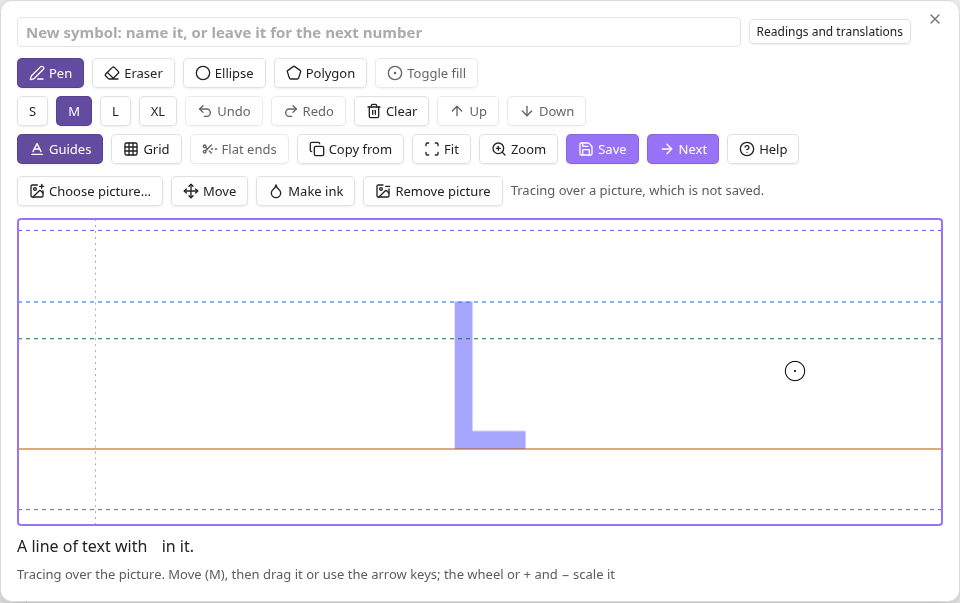
The editor opens over the note for a new symbol, from Inkline: Insert symbol, or for one you have, from Edit symbol or a double-click on it. Its parts, from the top:
- the name field, which holds the symbol's name, and, beside it, its readings and translations;
- the toolbar, whose buttons show an icon, a name, or both, as Editor buttons in the settings chooses, with each tool's shortcut in its tooltip;
- the picture bar, for a picture you trace over;
- the drawing area, one line of text tall, with its guides;
- a line of text that shows the symbol at its real size as you draw;
- a status line, which says what the editor did last, such as "Saved". Whatever you do next replaces it, so it is empty after something with nothing to say, such as Fit or a tool's button, rather than keep an earlier message. Through actions with nothing of their own to say, "Saving…" stays until the save ends, and "Draft not kept" until a draft is kept again; one that says something replaces them.
In the shortcuts below, Mod is Ctrl, or Cmd on macOS. Single-key shortcuts and undo give way to a text field that has the focus, such as the name field, so that typing a name never switches tools; press Enter in the field to go back to drawing. Keyboard and accessibility lists every key.
Pen and eraser
Pen (P) draws; Eraser (E) takes ink away. Draw with a mouse or a trackpad: every stroke is as wide as the brush. Only the main button draws, and only one pointer at a time. A drawing tablet's pen or a touchscreen draws as a mouse does, without pressure; Inkline does not support them otherwise.
The four brush sizes, S, M, L, and XL (keys 1 to 4), scale with the text and serve both Pen and Eraser. M draws about as thick as the letters of regular text, L near bold text, and XL heavier still; S is about half as thick as regular text, for fine detail. Fonts differ, so the match is close rather than exact.
A circle shows the brush's diameter, scaled with the drawing area. Pen and Eraser keep separate sizes while the editor is open and through Next. A separately opened editor starts both tools at the configured default size.
The eraser takes away exactly what its circle passes over, and what it has taken stays taken as you go on, so the edge it leaves along a curve stays where it is, except in a stroke that starts with Flat ends and the grid both on, as Known limits says. A straight part that Shift draws follows the pointer until you let go of Shift, as with the pen.
The brush circle and centre dot change between black and white to contrast with the drawing underneath, including tracing pictures. The thin outline keeps its shape and thickness as you move across light and dark areas. It changes size with the brush, drawing area, zoom and display scaling. Moving a tracing picture uses the grab cursor. Neither the circle nor dot is part of the preview or saved symbol. If the host cannot draw the indicator or read its background, a crosshair remains visible instead.
Undo, redo, and clear
Undo (Mod+Z) and Redo (Mod+Shift+Z, or Mod+Y) step through every stroke, clearing, copy, and ink made from a picture. Clear (Delete, or Backspace) takes away the whole drawing, and Undo brings it back.
Ellipses and circles
Ellipse (O) makes dragging draw an ellipse instead of following the pointer: drag from one corner of the box it fills to the other, and it is drawn as you go. With the grid off, hold Shift for a circle, as wide as the box's longer side. It draws with the pen or the eraser, whichever is chosen, at its brush size, so the eraser takes away a ring. A shape drawn with the eraser is tinted red until it is done, as it would show nothing where there is no ink to take away. Press Ellipse again to draw freehand. Next keeps it on; an editor opened afresh draws freehand.
With the grid on, nothing goes on it unless Shift is held, so each corner of the box is on the grid only if Shift is held as you place it: the first as you press, the second as you let go. Shift does this instead of making a circle, and no circle is drawn. The second corner follows the pointer, and goes back to it if you let go of Shift while dragging. An ellipse with both corners on the grid has the middle of its line on the grid's lines at its top, bottom, and sides.
For a half circle, draw the circle, then erase the half you don't want with eraser strokes that end on the row across its middle: with the grid and Flat ends on, bring them up or down to that row and hold Shift as they end, and their ends stop flush with it.
Polygons
Polygon (Y) draws a shape with straight sides and sharp corners, such as a triangle, a rectangle, or a lightning bolt. Click where each corner goes; the next side follows the pointer from the last corner. Click the first corner again to close the shape, or click the last corner again, as a double-click does, or press Enter, to leave it open. Undo (Mod+Z) takes back the last corner, and Esc drops the shape; so does the close button, before it closes the editor, and Clear, with the rest of the drawing. A press dragged before its release puts the corner where it is released. The shape draws with the pen or the eraser at its brush size; choosing another while placing it changes the whole shape. Press Polygon again to draw freehand; Next keeps it on.
Its corners are sharp on the outer side. A very sharp corner, under about 29°, has its point cut off square twice the stroke's width past the corner, so that it never reaches far beyond. An open shape's ends are square, half the stroke's width past its end corners, so that two shapes meeting at a corner make a sharp one.
With the grid on, a corner goes on it only if Shift is held as you click it, so one shape can have some corners on the grid and some off it. The next side shows where a click would put the corner. A shape's ends aren't cut flat on the grid: an open shape keeps its square ends, past the line they lie on, and Up and Down can then sit it on the line.
A click within the brush's circle of the first or last corner counts as that corner, or within 4 of the drawing's pixels for a smaller brush, with the grid on or off. So does a click with Shift held that snaps to such a corner, if Shift put it on the grid.
Filled shapes
Toggle fill (B) is a switch for the shapes drawn next, not a tool to click a shape with: it never fills what is already drawn. While it is on, Ellipse and Polygon draw solid shapes such as ● ▲ ■ ◆: an ellipse, and a polygon closed on its first corner. A filled shape is the shape as Toggle fill off draws it, its line at the brush size, with everything inside the line filled too, so a filled and an unfilled shape drawn across the same corners, or the same box, have the same outer edge. A filled triangle drawn on the grid reaches half the brush's width past the line its base lies on, as an unfilled one does, and Up and Down can sit it on the line. While you drag an ellipse, or point at a polygon's first corner, the editor shows the shape exactly as letting go, or the click, leaves it, and one Undo takes back the whole shape. An open polygon and a freehand stroke are not filled. With the eraser, a filled shape takes away its whole area, as far as the eraser's line would reach, for a hole of its shape. The button is off while drawing freehand. Turning it on or off while placing a polygon decides for that shape, as it closes. Next keeps it; an editor opened afresh does not fill.
Before 1.0.1, a filled shape's edges ran through its corners, or round the box dragged, without the brush's width around them. Symbols saved then keep their look.
Straight lines and the grid
Hold Shift while drawing to make the stroke straight, from where it was when Shift went down. Grid (Shift+G) shows a grid of dots, for scripts built from straight strokes and dots.
The grid is a guide, and nothing snaps to it unless Shift is held, for every tool. You can keep it on to judge distances and still draw freely: a click between its dots stays where you clicked, and a stroke starts and ends where you pressed and let go. With the grid on, holding Shift puts what you place at that moment on the nearest dot:
- Held as you press, it puts the stroke's start on the grid. A tap stays a dot there. An eraser's tap that takes away the area its circle covers stays that circle where you pressed, whatever Shift or the grid do before the pointer moves.
- Pressed part way, it makes the stroke straight from where it has got to, and the end of that straight part follows the dots. What you drew before stays where it is, including the stroke's start.
- Let go part way, it leaves the straight part as it is, ending on its dot, and the stroke follows the pointer again from there.
- Held as you let go of the mouse button, it puts the stroke's end on the grid. Letting go of Shift just before the button counts as holding it, unless the pointer has moved since; if it has, the stroke ends where the pointer does.
Held all the way through a stroke, Shift draws a straight line from one dot to another. With the grid off, it only makes the stroke straight, as above.
The grid is laid out on your note's font, so that a stroke can start and end on its lines. Its rows pass through the baseline and through each font line chosen in the settings, and the space between two neighbouring lines is divided evenly into cells as near the size of the x-height's as fits. By default 5 cells span the x-height; Grid size in the settings changes that, from 2 to 10. Above the highest line and below the lowest, rows go on evenly to the edges of the drawing area. Columns are as far apart as the x-height's rows, so cells there are square, and cells between other lines are close to square. No even grid could meet every line of every font. In a font such as Inter, at the default grid size, the cap height then lies 7 cells above the baseline.
Flat ends (T) stops a stroke's ends flush with a row of the grid, instead of rounding past it, but only the ends that Shift put on the grid, and only along a row. It is a switch, off in a new editor, and Next keeps it. The button is available with the grid on, while drawing freehand.
An end that comes in at 45° or steeper stops flush with the row through it, as the legs of an A come down to the baseline, judged over the last grid cell or two brush widths of what you drew, whichever is longer, and leaving out the jumps to the grid points. So a stroke drawn down to the baseline sits on it, with nothing below to erase. One running more along the row than across it is not cut, so a line drawn along the baseline stays whole with round ends.
A freehand end is not on a grid line, and stays round. So does a dot, and a stroke that ends on the grid point it started on, as a closed loop has no ends to cut. The eraser's ends are cut the same way in a stroke that starts with Flat ends and the grid both on, so erasing up to a row leaves a straight edge there. One that starts otherwise takes away exactly what its circle passes over, and its ends stay round, whatever you turn on during the stroke. Shapes are never cut: an ellipse has no ends, and a polygon keeps its square ones.
The grid keeps its place through saves. A symbol keeps its strokes exactly but not its grid, so what you placed with Shift never moves; what can change is where your next Shift lands. On a symbol you open again, the grid lines up with the ends you put on it with Shift, if the grid has the same rows as when you drew them. The rare freehand end that lies exactly on a row counts as one of them, so with very few placed ends it can pull the columns away from those. A symbol with none lines up with the ends that share a place within a cell, and else with the start of the first stroke.
While Move is on, Shift with an arrow key moves a picture to trace over by one column of the grid.
Guides, view, and width
Guides (G) shows or hides the lines at the text font's ascender, cap height, x-height, baseline, and descender, measured from the font your vault's text uses, and the edges the saved image will have. Fit (F) fits the drawing in view; a symbol wider than the usual view opens whole.
Up (ArrowUp) and Down (ArrowDown) move the whole drawing up or down by a pixel of the drawing, or by a grid cell's width with Shift, in Zoom the finer grid's, so that a shape drawn against a line can sit on it. They move every stroke and any ink made from a picture, and one Undo takes back moves made in a row. Ink moved past the top or bottom of the drawing area stays in the drawing and can be moved back, but it isn't in the saved image while it is out there. While Move is on, the arrow keys move the picture instead, and while Make ink is open they do nothing to the drawing.
Zoom (Z) shows the drawing twice as large, in a taller drawing area, for fine detail; it grows no taller than a little over half the window, or than leaves the editor's controls in view, and shows more width instead. The wheel, or the left and right arrow keys, move along the drawing, and Fit centres it while staying zoomed. Next keeps the zoom for the following symbol. Zooming changes only the view: the symbol is the same size in notes, and the brushes stay the same size against it.
The grid, though, has twice as many cells each way while zoomed, so the default 5 cells across the x-height become 10, for placing fine detail. Every point of the usual grid stays a point of the finer one, so a drawing started in either view lines up in the other, and zooming out puts the usual grid back where it was, however much you drew while zoomed. A polygon being placed keeps the grid it started on until it ends, and Shift with an arrow key moves a picture by a column of the grid shown. Grid size keeps its range of 2 to 10, and saved symbols are not affected. On a symbol you open again, the usual grid follows the ends you placed with Shift, so after placing them mostly on points of the finer grid alone it can lie half a cell from where it was; the finer grid passes through them either way.
Help opens a built-in quick start with an explanation of each guide, the grid, drawing, tracing, and saving. Close Help or press Esc to return to the drawing. The horizontal guides, top to bottom, are the font's upper extent (ascender), the top of a capital such as H (cap height), the top of a lowercase x (x-height), the solid baseline where letters sit, and the font's lower extent (descender). Some fonts put guides at the same height or outside the drawing area. The vertical dashed lines mark the saved image's edges, including spacing.
Each font line has a colour of its own, from your theme: ascender purple, cap height blue, x-height green, baseline orange, and descender pink; light themes draw the green and orange darker, for contrast with the background. Inkline's settings choose which lines show; Guides then shows or hides those together. A CSS snippet can change a line's colour by setting --inkline-guide-ascender, --inkline-guide-cap-height, --inkline-guide-x-height, --inkline-guide-baseline or --inkline-guide-descender on body .inkline-surface, for example body .inkline-surface { --inkline-guide-baseline: crimson; }.
A symbol is as wide as its ink: saving crops the image to the ink, with a little space on each side, as a font spaces its letters. Its height is always one line of text.
Trace over a picture
Paste a picture with Mod+V, drop one on the editor, or open one with Choose picture…, such as a screenshot of a symbol in a game, or an image from Obsidian's file explorer. Choose picture… opens your system's file dialog, which reaches files in the vault and outside it. It shows faintly under the drawing, as tall as a capital letter, for you to draw over. It is never saved, nor kept in drafts.
Move (M) lets you drag the picture and scale it with the wheel; the arrow keys move it, and + and − scale it, from the keyboard. Press M again to draw. Remove picture takes it away, and another paste replaces it. Next takes the picture on to the next symbol where it was, so that you can trace a whole inscription from one screenshot.
Make ink of a picture
Make ink (I) turns the picture into the symbol's ink, so that a symbol you can see needs no drawing at all. A slider sets the threshold between ink and ground, and the drawing area previews the result; Light ink takes a light symbol on a dark or transparent ground. Apply makes the ink, and Cancel makes none.
Only what the drawing area shows becomes ink, across and within the line's height, so that the other symbols of a screenshot stay out: move and scale the picture first. The ink is the symbol's base layer, under its strokes: it takes the place of any base layer the symbol had, such as ink an earlier Make ink gave, and Undo takes it back. Saving while the preview shows makes that ink first.
A picture shown larger than its own pixels, such as a small screenshot scaled up to a capital's height, is sampled at the drawing's finer resolution before the threshold applies. The ink's edges stay sharp instead of spreading across each enlarged pixel. Where that would take too many samples, as for a large picture enlarged across a wide drawing, it is sampled less finely, down to its own pixels. A picture with transparency keeps the soft edges of its own transparency when enlarged; see Limits.
A dim picture, such as a dark screenshot of a game, gets edges as sharp as a bright one's. The ink's edge narrows with the contrast between the two sides of the threshold, instead of being as soft as the picture's own edges on a picture with little contrast. A few bright pixels elsewhere in the picture do not change it, but they can draw the threshold's first position to them: move the slider down to the strokes, or move the picture to keep those pixels out. Soft strokes come out wider than they were drawn; see Limits.
Start from a copy
In the editor for a new symbol, Copy from (V) starts it from a copy of another symbol's strokes and ink, chosen from a list of the vault's symbols with their pictures, in place of what is drawn so far, for scripts whose symbols share parts. Undo takes the copy back.
A large symbol takes a moment to read, and a notice says so. What you draw meanwhile stays in the history, for Undo to bring back. If a save or a question comes up before the symbol is read, the drawing stays as it is, and the status line says that it was not copied, so that Save cannot save the copy in your drawing's stead. Choose it again.
The list finds a symbol by its readings and translations as well as its path, and a row found that way says so. The copy takes only the drawing: they stay with the symbol they were written for, and the status line says so. A variant is another symbol, which may be read differently, and readings copied into it would still find it after the original's were edited.
Save
- Save (Mod+Enter) saves and closes the editor. For a new symbol, the first save creates the file and inserts its embed.
- Mod+S saves and keeps the editor open.
- Next (Mod+Shift+Enter), for a new symbol, saves and inserts it, then opens a blank editor for the symbol that follows it.
- A new symbol with nothing drawn, no stroke of the pen and no picture as its base layer, is not saved. Save, Mod+S, and Next leave the editor open, and the status line says "Not saved: nothing drawn yet", so that a second click on Next makes no empty symbol. A symbol that has a file still saves when you erase it to nothing.
Saving an edited symbol updates its existing placements in open notes and popout windows, in both text-colour and stored-grey modes. Notes keep their text and any explicit image sizes; they do not need to be reopened. When your notes use the symbol more than once, the first save of a changed drawing asks whether to Replace it everywhere first; Changing a symbol used elsewhere describes the question, and how to make a variant instead.
A save that fails keeps the editor open with the drawing and says why. Closing with unsaved changes, by Esc, the close button, or a click outside, asks whether to save, discard them, or keep drawing; Saving and recovery describes the rest.
The name
The name field is the symbol's file name without .ink.png. A name can use any script, and emoji, with the joiners and marks they need. A name is refused, with a notice, when its folder already has a symbol of that name in any letter case, when Windows reserves it, such as CON, or when it is too long for a file name. Characters that a file name cannot hold on some system, or that would break a link, such as / \ : * ? " < > | # ^ [ ], are left out, as are invisible spaces and the controls that reorder text.
Changing the name of a symbol that has a file renames the file when you save, through Obsidian, so that the links to it follow as Obsidian's settings say. If the rename fails, the drawing is saved anyway, and the editor stays open with the name for the next save to try.
A rename first saves every open note that holds unsaved text, as Obsidian writes links at places it noted before it asks about them. If a note cannot be saved, nothing is renamed, and the editor stays open with the name for the next save to try. A new symbol's embed takes the new name whatever you answer Obsidian, and the cursor stays just after the symbol.
The symbol's file is checked again once the drawing and the notes are saved, and once Obsidian has finished indexing the notes and any other rename, so that Obsidian begins to move it in the same step as the check. If it was deleted and replaced, or renamed elsewhere, meanwhile, or another symbol took the new name, nothing is renamed: the drawing is saved, a notice says why, and the editor stays open with the name you typed for the next save to try. A name given elsewhere stays until then, with the links that rename left. A change at the very moment Obsidian moves the file, such as one by another app, is reported in a notice that says what happened and where the symbol is, as the limits describe.
Readings and translations
The button beside the name shows a symbol's readings and translations, and opens two fields to fill them in. It adds no row to the editor, and a symbol that has some shows them on the button. A field holds one value to a line, the main one first, so press Enter between two values. Tab moves on from a field, and Mod+Enter saves as it does anywhere in the editor.
They save with the symbol, on the same Save as the drawing, and a draft keeps what you typed as it keeps a new name. Spaces around a value and blank lines are left out. A list over 4,096 bytes can't be saved: the field says so, and nothing is written until it is shorter. With Next, the fields stay open and the next symbol starts with them empty.
Symbols in notes says what they are for, and the library changes them without opening the editor.